5. VXLAN & Logical Switch Deployment

Next: 6. NSX Distributed Logical Router ->

Ok, this is the part 5 of the series where we are looking at the VXLAN & Logical switch configuration

  • VXLAN Architecture – Key Points

    • VXLAN – Virtual Extensible LAN
      • A formal definition can be found here but put it simply, its an extensible overlay network that can deploy a L2 network on top of an existing L3 network fabric though encapsulating a L2 frame inside a UDP packet and transfer over an underlying transport network which could be another L2 network or even across L3 boundaries. Kind of similar to Cisco OVT or even Microsoft NVGRE for example. But I’m sure many folks are aware of what VXLAN is and what and where its used for already.
      • VXLAN encapsulation adds 50 bytes to the original frame if no VLAN’s used or 54 bytes if the VXLAN endpoint is on a VLAN tagged transport network   0.1 VXLAN frame
      • Within VMware NSX, this is the primary (and only) IP overlay technology that will be used to achieve L2 adjacency within the virtual network
      • A minimum MTU of 1600 is required to be configured end to end, in the underlying transport network as the VXLAN traffic sent between VTEPs (do not support fragmentation) – You can have MTU 9000 too
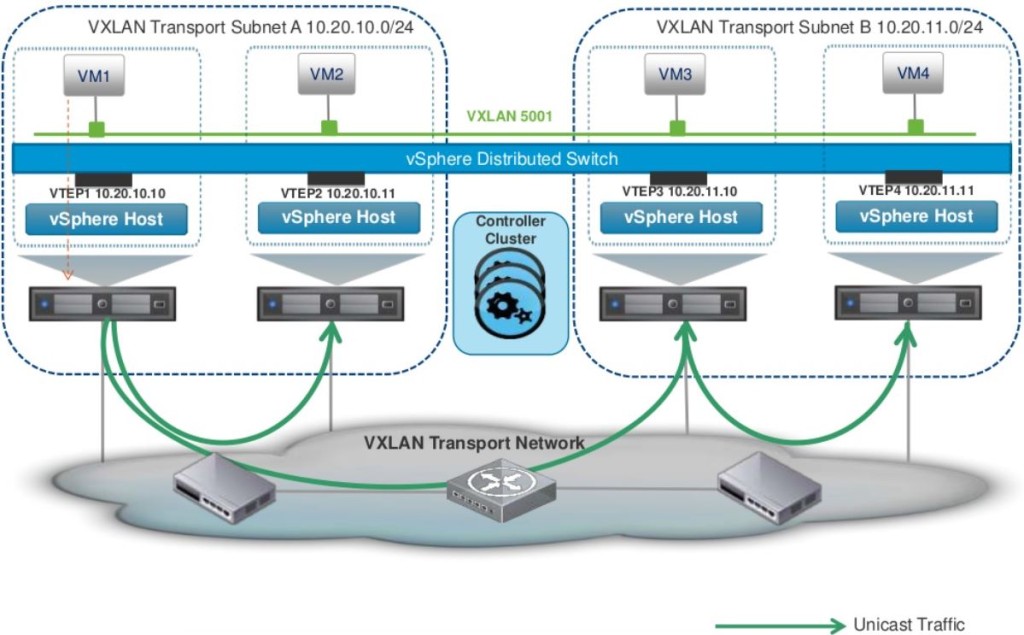
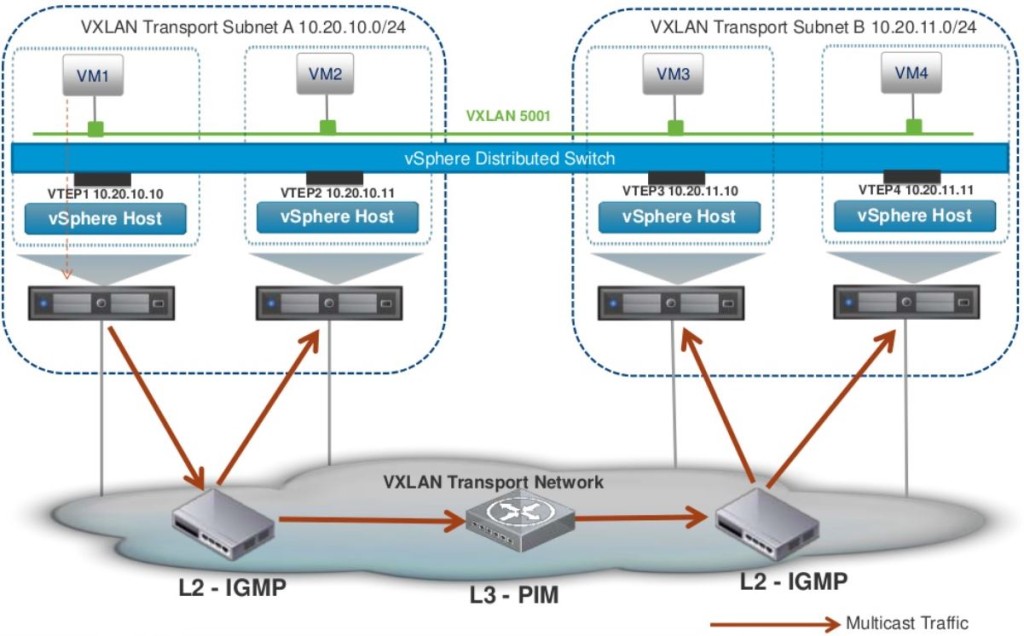
      • VXLAN traffic can be sent between VTEPs (below) in 3 different modes
        • Unicast – Default option that is supported with vSphere 5.5 and above. This has a slightly more overhead on the VTEPs 0.2 VXLAN Unicast
        • Multicast – Supported with ESXi 5.0 and above. Relies in the Multicasting being fully configured on the transport network with L2-IGMP and L3-PIM 0.3 VXLAN Multicast
        • Hybrid – Unicast for remote traffic and Multicast for local segment traffic.0.4 VXLAN Hybrid
      • Within NSX, VXLAN is an overlay network only between ESXi hosts and VM’s have no information of the underlying VXLAN fabric.


    • VNI – VXLAN Network Identifier (similar to a VLAN ID)
      • Each VXLAN network identified by a unique VNI is an isolated logical network
      • Its a 24 bit number that gets added to the VXLAN frame which allows a theoretical limit of 16 million separate networks (but note that in NSX version 6.0, the only supported limit is 20,000 NOT 16 million as VMware marketing may have you believe)
      • The VNI uniquely identifies the segment that the inner Ethernet frame belongs to
      • VMware NSX VNI range starts from 5000-16777216


    • VTEP – VXLAN Tunnel End Point
      • VTEP is the end point that is responsible for encapsulating the L2 Ethernet frame in a VXLAN header and forward that on to the transport network as well as the reversal of that process (receive an incoming VXLAN frame from the transport network, strip off everything and just forward on the original L2 Ethernet frame to the virtual network)
      • Within NSX, a VTEP is essentially a VMkernal port group that gets created on each ESXi server automatically when you prepare the clusters for VXLAN (which we will do later on)
      • A VTEP proxy is a VTEP (specific VMkernal port group in a remote ESXi server) that receive VXLAN traffic from a remote VTEP and then forward that on to its local VTEPs (in the local subnet). The VTEP proxy is selected by the NSX controller and is per VNI.
        • In Unicast mode – this proxy is called a UTEP
        • In Multicast or Hybrid mode – this proxy is called MTEP


    • Transport Zone
      • Transport zone is a configurable boundary for a given VNI (VXLAN network segment)
      • Its like a container that house NSX Logical Switches created along with their details that present them to all hosts (across all clusters) that are configured to be a part of that transport zone (if you want to restrict certain hosts from seeing certain Logical switches, you’d have to configure multiple Transport Zones)
      • Typically, a single Transport Zone across all you vSphere clusters (managed by a single vCenter) is sufficient.
  •  Logical Switch Architecture – Key Points

    • Logical Switch within NSX is a virtual network segment which is represented on vSphere via a distributed port group tagged with a unique VNI on a distributed switch.
    • Logical Switch can also span distributed switch by associating with a port group in each distributed switch.
    • VMotion is supported amongst the hosts that are part of the same vDS.
    • This distributed port group is automatically created when you add a Logical Switch, on all the VTEPs (ESXi hosts) that are part of the same underlying Transport Zone.
    • A VM’s vNIC then connects to each Logic Switch as appropriate.


 VXLAN Network Preparation

  1. First step involved is to prepare the hosts. (Host Preparation)
    1. Launch vSphere web client, go to Netwrking & Security -> Installation (left) and click on Host preparation tab 1. Host prep 1
    2.  Select the Compute & Edge clusters where the NSX controllers & compute & edge VM’s reside where you need to enable VXLAN and click install. 1. Host prep 2
    3. While the installation is taking place, you can monitor the progress of vSphere web / c# client 1. Host prep 3
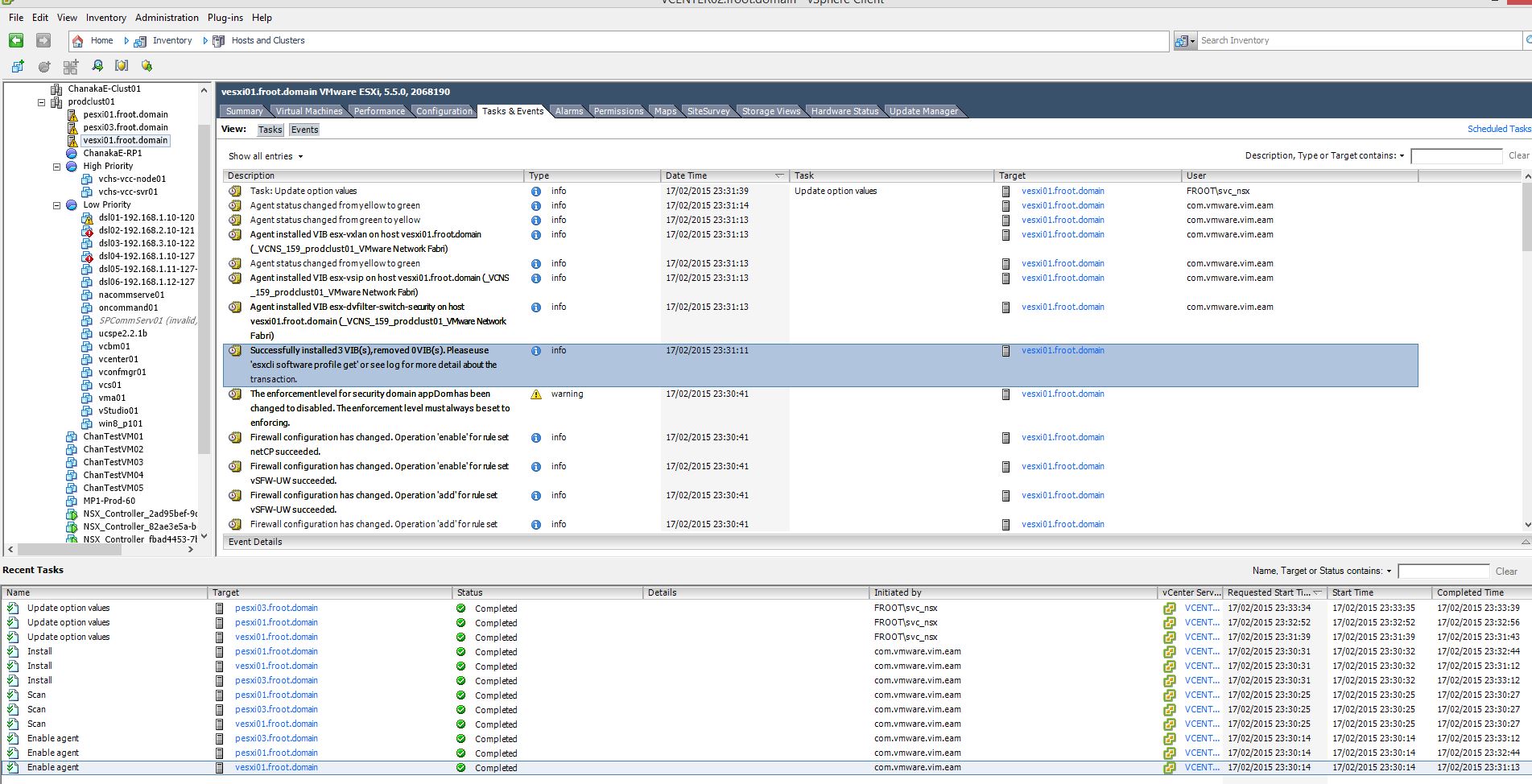
    4. During this host preparation, 3 VIB’s will be installed on the ESXi servers (as mentioned in the previous post of this series) & you can notice this in vSphere client.   1. Host prep 4
    5. Once complete, it will be shown as Ready under the installation status as follows 1. Host prep 5
  2. Configure the VXLAN networking
    1. Click configure within the same window as above (Host Preparation Tab) under VXLAN. This is where you configure the VTEP settings including the MTU size and if the VTEP connectivity is happening through a dedicated VLAN within the underlying transport network.  Presumably this is going to be common as you still have your normal physical network for all other things such as VMotion network (vlan X), storage network (vlan Y)…etc.
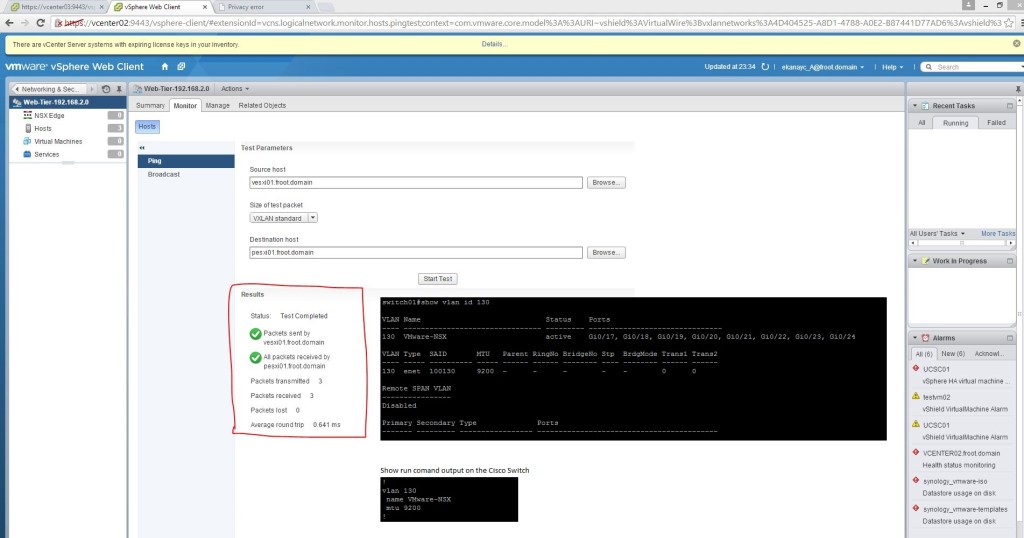
      1. In my example I’ve configured a dedicated VXLAN VLAN in my underlying switch with the MTU size set to 9000 (this could have been slightly more than 1600 for VXLAN to work).
      2. In a corporate / enterprise network, ensure that this vlan has the correct MTU size specified and also in any other vlans that the remote VTEP are tagged with. The communication between all VTEPs across vlans need to have at least MTU 1600 end to end.
      3. You also create an IP pool for the VTEP VMkernal port group to use on each ESXi host. Ensure that there’s sufficient capacity for all the ESXi hosts. 2. Co0nfigure VXLAN networking
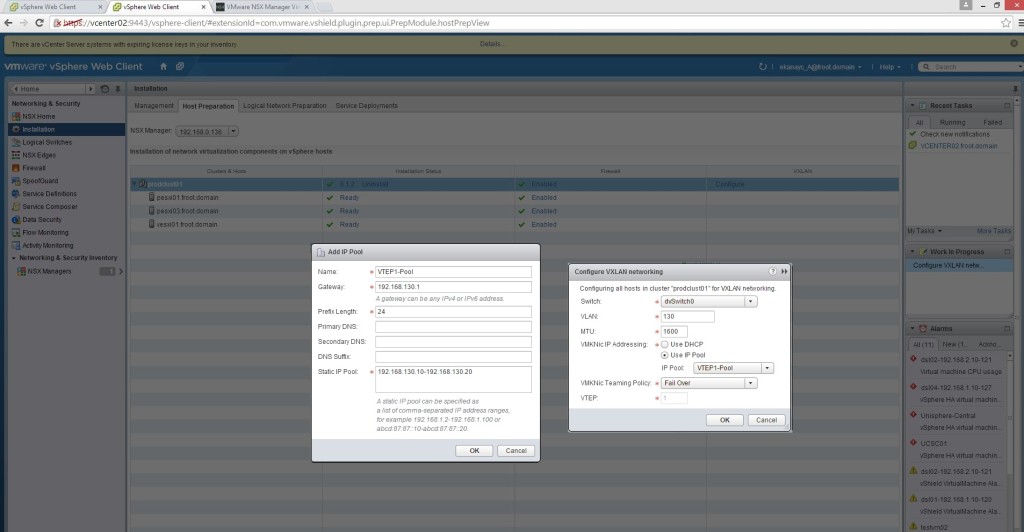
    2. Once you click ok, you can see on vSphere client / web client the creation of the VTEP VMkernal portgroup with an IP assigned from the VTEP Pool defined along with the appropriate MTU size (Note that I’ve only set MTU 1600 in the previous step but it seems to have worked out that my underlying vDS and the physical network is set to MTU 9000 and used that here automatically). 3. VXLAN networking prep check
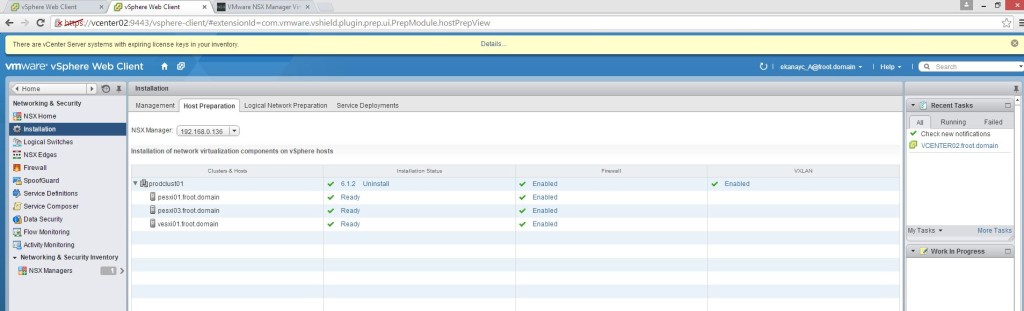
    3. Once complete, VXLAN will appear as complete under the host preparation tab as follows 4. VXLAN Enabled
    4. In Logical Network Preparation tab, you’ll notice that the VTEP vlan and the MTU size with all the VMkernal IP assignment for that VXLAN transport network as show below 5. VXLAN Transport enabled
  3. Create a segment ID (VNI pool) – Go to Segment ID and provide a range for a pool of VNI’s 6. VXLAN Segment ID pool (VNI)
  4. No go to the Transport Zone tab and create a Global transport zone.  7. VXLAN Global Transport Zone
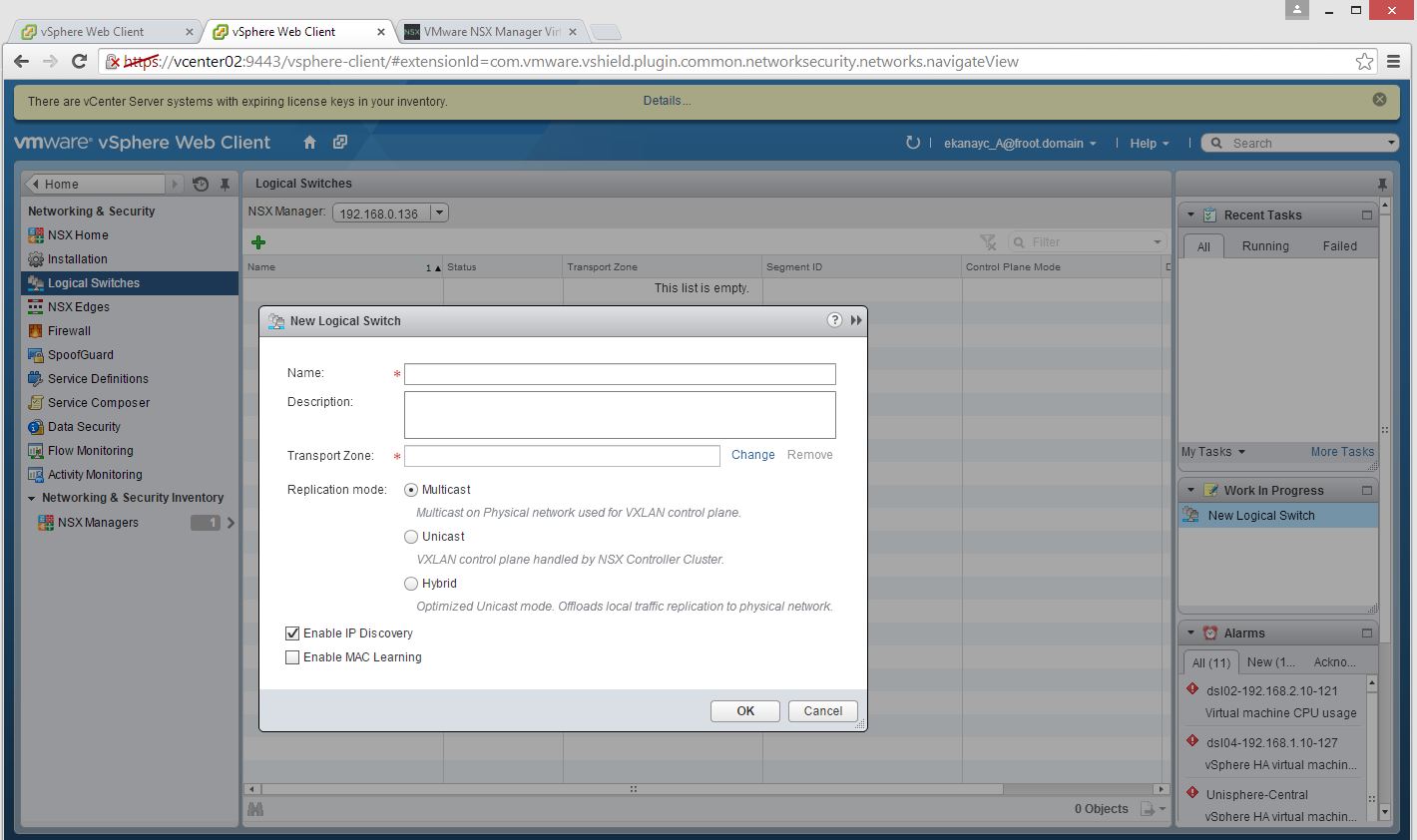
  5. The logical switch is created using the section on the left and create a logical switch. Provide a name and the transport zone and select the Multicast / Unicast / Hybrid mode as appropriate (my example uses Unicast mode).
    1. Enable IP discovery: Enables the ARP suppression available within NSX. ARP traffic is generated as a broadcast in a network when the destination IP is known but not the MAC. However within NSX, the NSX controller maintains and ARP table which negates the use of ARP broadcast traffic.
    2. Enabled MAC learning: Useful if the VM’s have multiple MAC addresses or using vmnics with trunking. Enabling MAC Learning builds a VLAN/MAC pair learning table on each vNic. This table is stored as part of the dvfilter data. During vMotion, dvfilter saves and restores the table at the new location. The switch then issues RARPs for all the VLAN/MAC entries in the table.  8. Add logical Switch
  6. You can verify the creation of the associated port group by looking at the vSphere client. 10. Check the port group creaton
  7. In order to confirm that your VTEPs (behind the logical switches) are fully configured and can communicate with one another, you can double click the logical switch created, go to monitor and do a ping test using 2 ESXi servers. Note that the switch ports where the uplink NIC adaptors plugged in to need to be configured for appropriate MTU size (as shown)10.1 Verify the VTEP communication
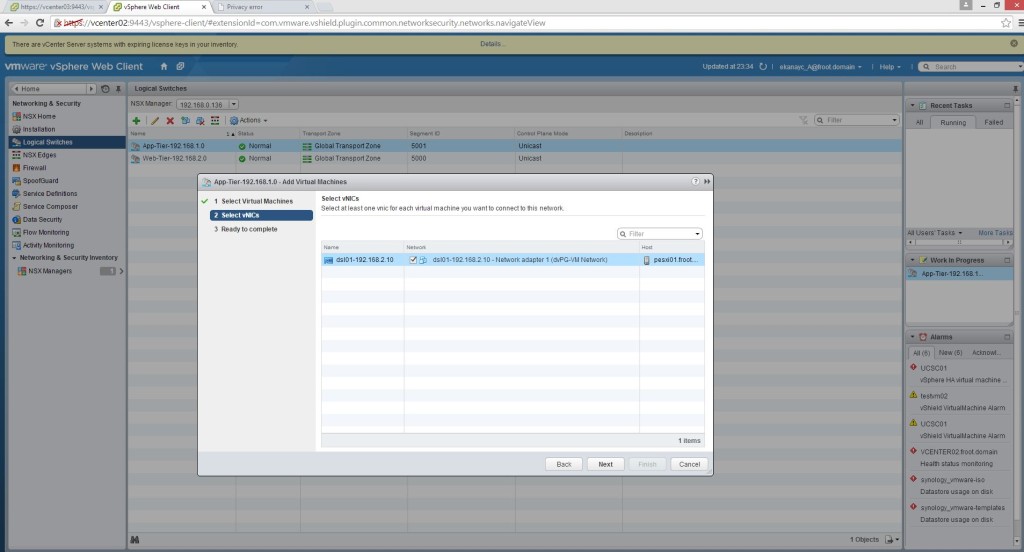
  8. You can create multiple Logical Switches as required. Once created, select the logical switch and using Actions menu, select add VM to migrate a VM’s networking connectivity to the Logical switch.  11. Add VM step 1 12. Add VM step 2 13. Add VM step 3


There you have it. your NSX environment now has Logical switches that all your existing and new VM’s should be connecting to instead of standard or distributed switches.

As it stands now, these logical networks are somewhat unusable as they are isolated bubbles and the traffic cannot go outside of these networks. Following posts will look at introducing NSX routing using DLR – Distributed Logical Routers to route between different NXLAN networks (Logical switches) and introducing Layer 2 bridging to enable traffic within the Logical Switch network to communicate with the outside world.

Thanks

Chan


Next: 6. NSX Distributed Logical Router ->

4. NSX Controller Architecture & Deployment

Next: 5. VXLAN & Logical Switches ->

In the previous step of this series of NSX posts, we looked at the NSX Manager and its deployment. In this article, we are going to have a quick look at the NSX Controller architecture at a high level and how to deploy them.

  • NSX Controller Architecture – Key points

    • They provide
      • VXLAN distribution & Distributed Logical Router (DLR) workload handling & providing information to ESXi hosts.
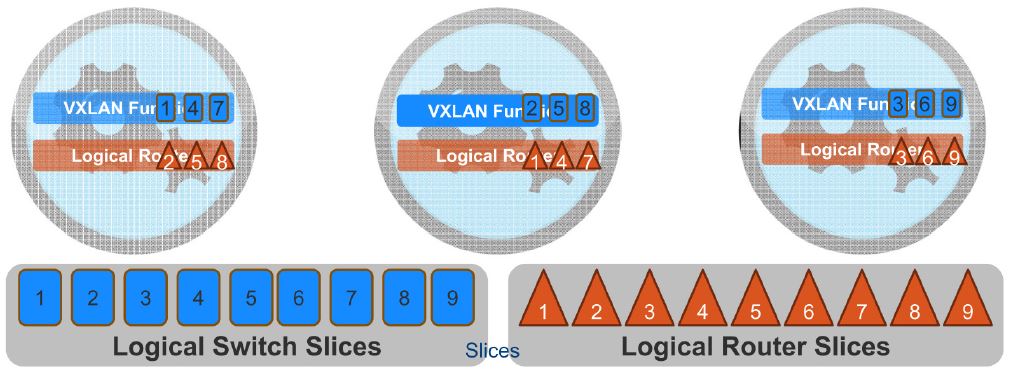
      • Workload distribution through slicing dynamically amongst all controllers
      • Removal of multicast
      • ARP broadcast traffic suppression in VXLAN networks
    • They store
      • ARP Table:          VM ARP requests for a MAC are intercepted by the hosts and sent to NSX controllers. If the NSX controllers has the ARP, it’s returned to the host that then replies to the VM locally resulting in no ARP broadcast.
      • VTEP table
      • MAC table
      • Routing table:    Routing tables are obtained from the DRL control VM
    • Cluster of 3 NSX controllers is always recommended to avoid a split brain scenario
    • 4 VCU & 4GB RAM per each controller
    • Should be deployed on the vCenter linked to NSX manager (meaning, on the compute or service & edge cluster, NOT the management cluster)
    • User interaction with NSX controllers is through CLI
    • Control plane communication is secured by SSL certificates
  • NSX Manager interaction with NSX Controller

    • NSX mgr and vCenter systems are linked 1:1
    • Install UWA, and few kernel modules (VXLAN, DLR VIB, DFW VIB) on the ESXi servers of the clusters managed by the linked vCenter server during the host preparation stage                                                                                                  
      • UWA=User World Agent
        • Run as a service daemon called netcpa (/etc/init.d/netcpad status)
        • Mediates between NSX controller and hypervisor kernel module communication except for DFW
        • Maintains logs at /var/log/netcpa.log on the ESXi host of the compute & edge clusters
      • Kernel modules
        • Distributed Firewall VIB: Communicate directly with NSX Manager through vsfwd service running on the host
        • Distributed Logical Router VIB: Communicate with NSX controllers through UWA
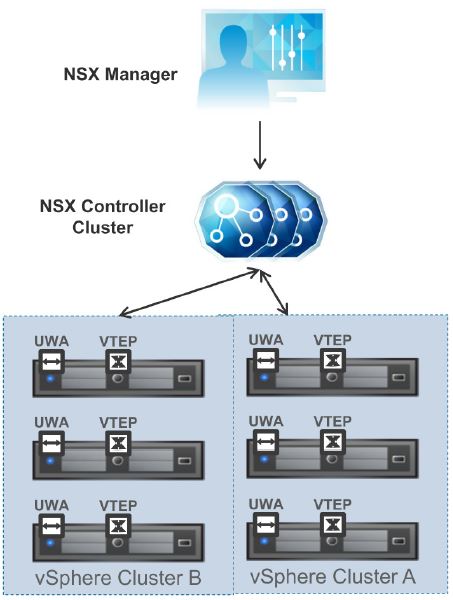
        • VXLAN VIB: Communicate with NSX controllers through UWA1.6. UWA


    • NSX Manager also configures the NSX controller nodes through the REST API                                                                1.3. Controller high level


    • For each NSX role (such as VXLAN, Logical routers….etc) a master controller is required
    • Uses slicing as a way to divide NSX controller workload in to different slices and allocate to each controller (controlled by the master) 1.5. Slicing


    • Highlighted below in the diagram are the typical communication channels between NSX controllers and other NSX components.0. NSX mgr communication


NSX Controller Deployment

Deploying the NSX controllers (3 recommended as stated above) is fairly straight forward

  1. Launch the vSphere Web client (for the compute or edge cluster, NOT the management cluster vCenter server) and select Networking and Security – note that you need to have logged in to vSphere web client as a NSX enterprise admin user (how to set up rights was covered in the previous post of this series)
  2. Select Installation from the left pane
  3. At the bottom, under NSX controller nodes section, select the plus sign to add the first NSX controller node and provide all the information requested in the next screen. Note the below
    1. Connected to: You need to select the management network port group here
    2. IP Pool:  Need an IP pool of at least 3 (for 3 NSX controllers)
    3. Password: NSX controller CLI password specified here. All subsequent controller nodes deployed will use the same password.   3. Add controller wizard 4. Add NSX-Controller-Pool
  4.  Once complete, click OK and you can see the first controller is being deployed                                            6. 1st NSC COntroller deployment
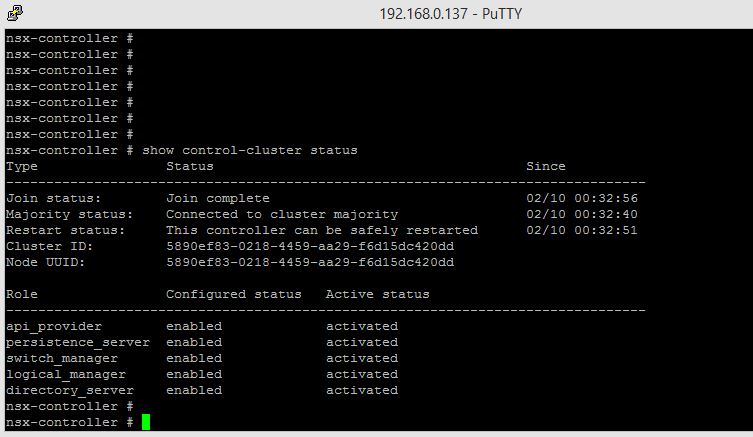
  5.  Once deployed, you can putty in to the CLI using the IP (first IP of the pool you specified above) and verify the control cluster status 6.1 Show control-cluster status
  6. Now, follow the same steps and deploy the 2nd and 3rd NSX Controller nodes too and verify the CLI access 7. 2nd & 3rd Controller node deployment8. Deploy all 3 controller nodes


That’s it, you now have your NSX controller clusters fully deployed and configured.

In the next post of the series, we will look at Logical switches and VXLAN overlays..

Next: VXLAN & Logical Switches ->

Cheers

Chan
 

3. NSX manager deployment

Next: NSX Controller Architecture & Deployment ->

First deployement task involved in a typical NSX deployment is to deploy the NSX manager. The NSX Manager, which is the centralized management component of NSX and runs as a virtual appliance on an ESX host. This article aim summarise all the usual steps required to effectively plan & deploy this NSX manager appliance.

  1. Consider the pre-requisites.

    1. A dedicated management cluster:
      1. This is an important consideration. NSX manager needs to be deployed in a dedicated management / infrastructure cluster that is separate from the compute cluster (where all of your production VM’s live). The NSX installation and upgrade guide states this. ” VMware recommends that you install NSX Manager on a dedicated management cluster separate from the cluster(s) that NSX Manager manages. Each NSX Manager works with a single vCenter Server environment. The NSX Manager requires connectivity to the vCenter Server, ESXi host, and NSX Edge instances, NSX Guest Introspection module, and the NSX Data Security virtual machine. The NSX Manager should be run on an ESX host that is not affected by down time, such as frequent reboots or maintenance-mode operations. Thus, having available more than one ESX host for NSX Manager is recommended”
      2. The topic of a dedicated management cluster can be discussed in a post of its own. But for the sake of NSX deployment (and lot of other VMware products such as vRealize Automation…etc), a dedicated management cluster that is not dependent upon the compute cluster (where your production workload reside) is a must have requirement. You can refer to this as a management cluster or an infrastructure cluster. This has become almost a must have these days not just because of NSX but also some other VMware products such as vRealize Automation (vCAC) also recommending a dedicated management cluster. A typical example would look like below.                                                                                                                        0 NSX deployment architecture
      3. VMware would even go a step further, and recommend separating out another dedicated cluster as an edge cluster too, which could be especially important in a highly scaled out, large NSX deployment. But in all honesty, I cannot see this happening with the majority of VMware customers where they would likely make the edge cluster the same as their compute cluster. But, if you are talking about a large enough NSX deployment to warrant a dedicated edge cluster, a similar deployment architecture would look like below.0. Scaled out deployment
    2. Management system requirements: Given below are some key management requirements
      1. Supported Web browser (Internet explorer 8, 9 & 10 only, 2 most recent Mozilla Firefox or 2 most recent google Chrome)
      2. vSphere Web Client (All NSX settings are managed through the vSphere web client only as there’s no plugin for the c# client.
    3. vSphere requirements:  The compute cluster must have the following vSphere requirements
      1. Enterprise plus licenses (require the ability to use the VDS-vSphere Distributed Switch)
      2. vCenter Server (managing the compute & Edge clusters) to be vCenter 5.5 or later
      3. All ESXi servers in the compute & Edge clusters to be 5.5 or higher (if ESX 5.0, multicast has to be used for VXLAN)
      4. VMware tools to be installed
    4. Communication requirements:  The following ports are required to be available for communication between NSX manager and the NSX components
      1. 443 between the NSX manager and ESXi hosts & vCenter server (of the compute & edge cluster)
      2. 443 between the REST client and NSX server (a rest client would be something like a vRealize Orchestrator for example)
      3. TCP 80 and 443 to access the NSX manager between the management host and vCenter server & NSX manager
      4. TCP 22 for CLI troubleshooting between management host and NSX manager
  2. Understand the NSX deployment order: The following deployment and configuration order must be followed during a typical deploymentNSX configuration order

  3. Obtain the NSX manager OVA file (refer to the previous post in this series to find out how)

  4. Deploy the NSX manager OVA file (within the management cluster vCenter server)

    1. Select the location of the NSX manager OVA flie (either through the vSphere web client or the vSphere c# client)1
    2. Check the OVA version and click next                                                                  2
    3. Accept the EULA and click next                                                                                 3
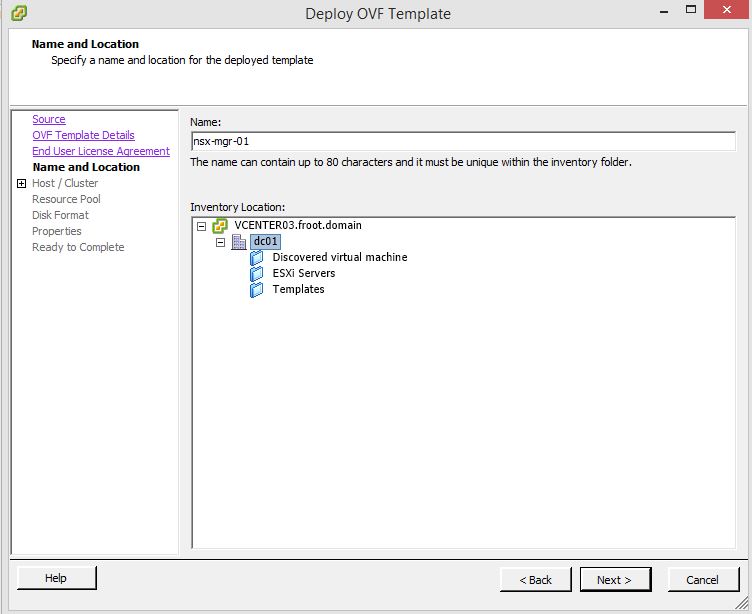
    4. Provide a name for the NSX manager (don’t forget to manually add a DNS entry on your DNS server)  4
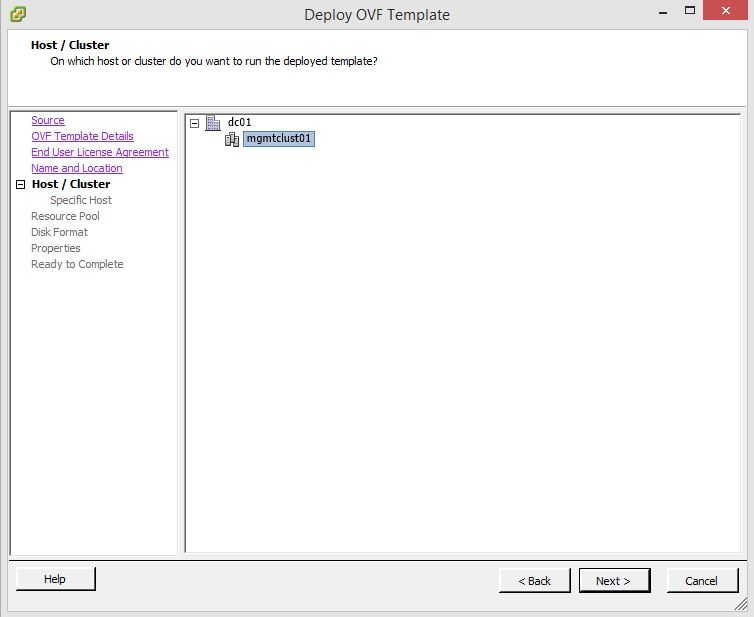
    5. Select the cluster on which to deploy the NSX manager (this should be the management cluster)    5
    6. Select any resource pools if required                                                                                                                    6
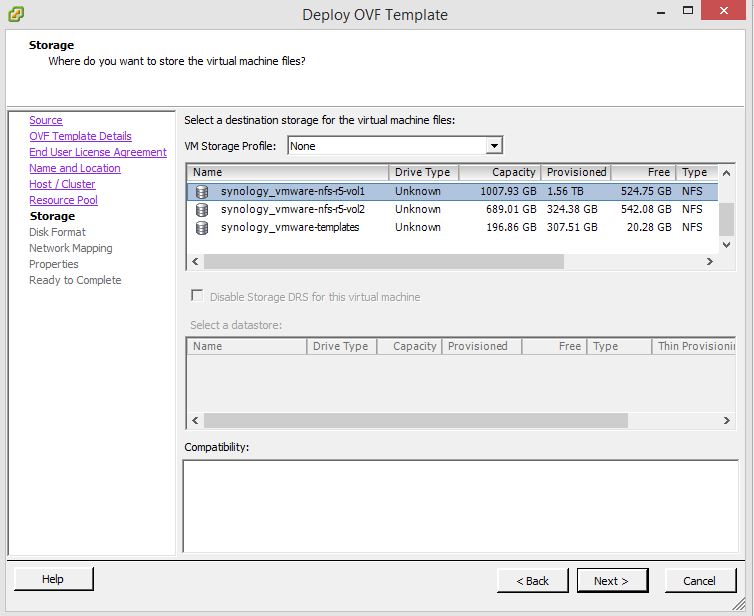
    7. Select the datastore to store the NSX manager OVF (should be specific to the management cluster)     7. Datastore
    8. Select the disk format (I would recommend Eager Zeroed Thick unless you have NSF as in the below screenshot)  8. Disk type
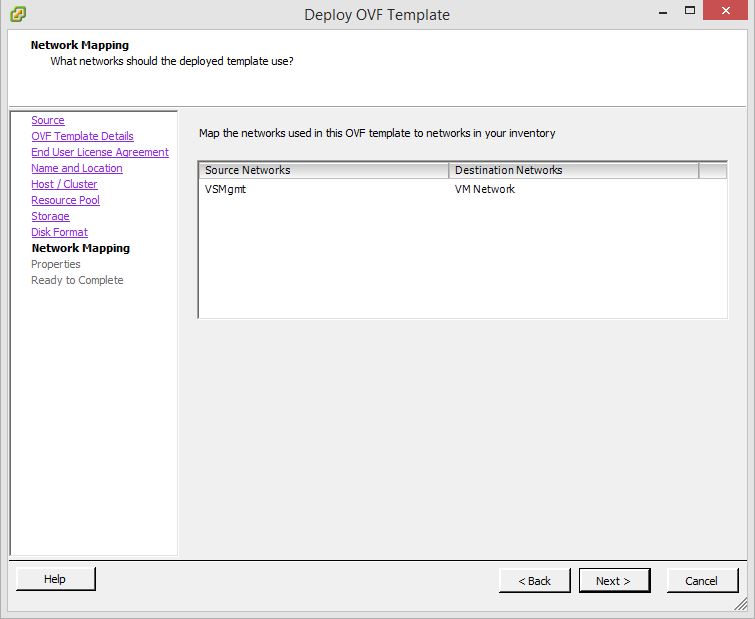
    9. Select the appropriate management network for the NSX manager (note the communication path with NSX manager) 9. Network Mapping
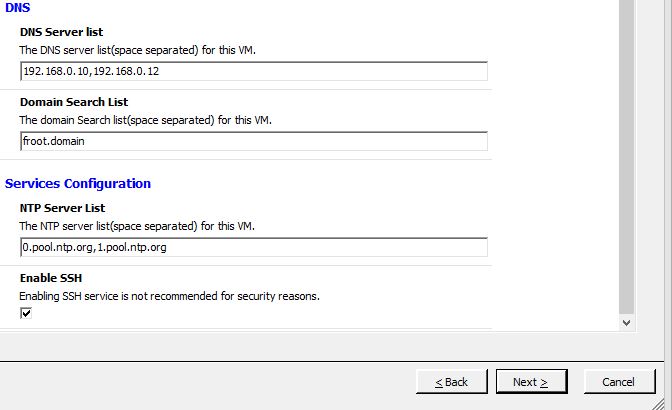
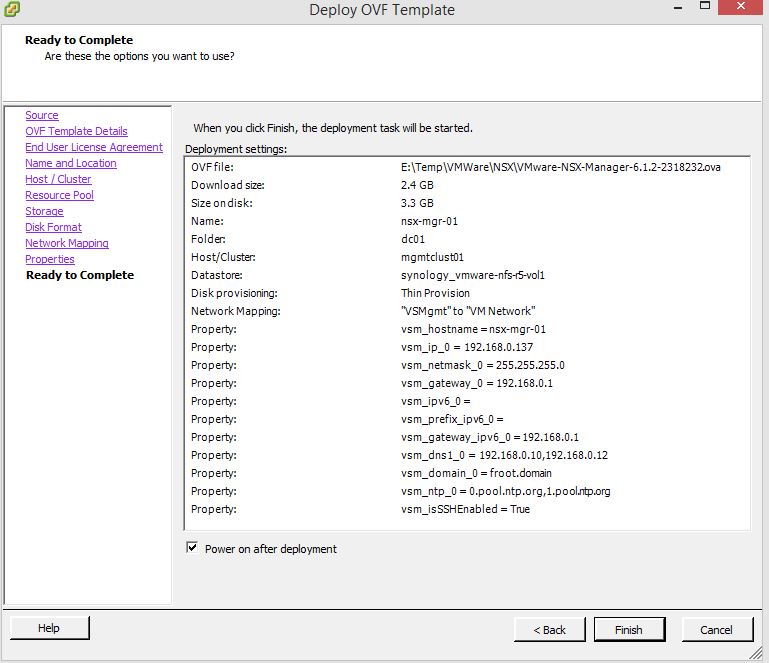
    10. Provide the CLI “admin” account password & the CLI privilege mode password for the NSX manager VM, networking properties such as Host name, IP details, DNS and NTP server details. Use redundant values here for high availability.10. Properties-1 10. Properties-2
    11. Select the power on after reboot check box and click finish                                                           11. Power On after deploy
  5. Perform the initial configuration of the NSX manager server

    1. Login to the NSX manager instance using https://NSX-Manager-Host-Name-Or-IP using a supported browser. The credentials use here are admin and the password you provided for the CLI admin account (during the ova deployment) 12. Login
    2. Click on View Summary                                                                                                                                                                   13. Manage settings
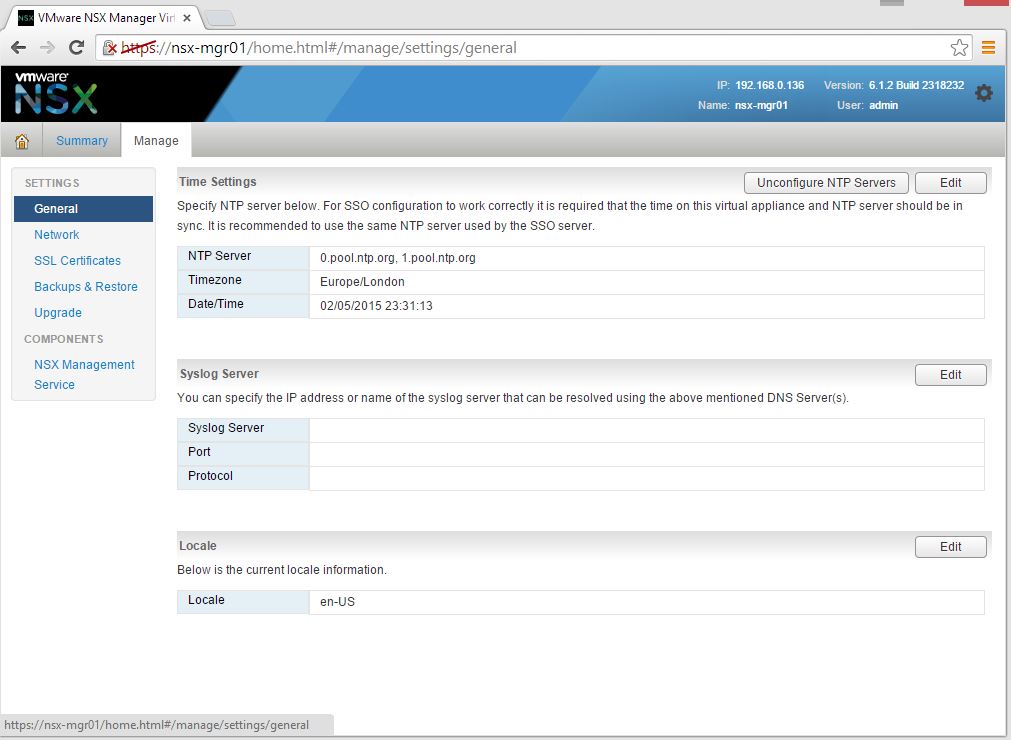
    3. Ensure that all NSX manager components are running and click on the manage tab at the top. Under the selected General section on the left, configure the NTP server settings (if not set automatically), syslog server details for log forwarding and any locale details if different from default.14. General settings
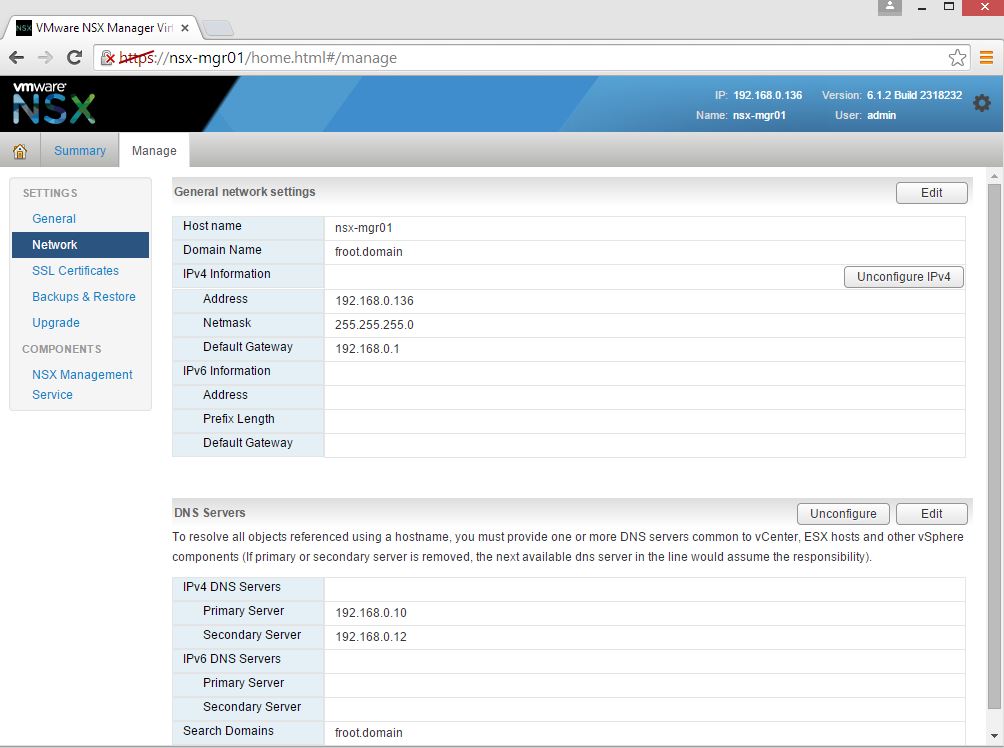
    4. Under the Network section, verify the general network settings are accurately set based on deployment parameters 15. Network tab
    5. Assign any specific SSL certifications required under SSL certification section. It is recommended that the default, self signed certificate is NOT used for production deployments 16. SSL Cert
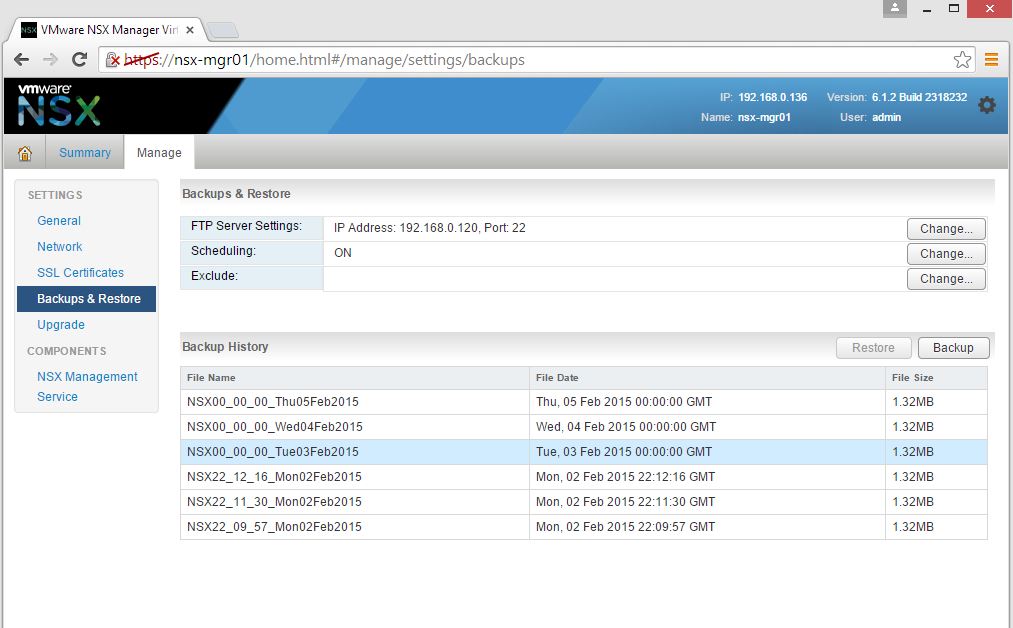
    6. Select the backup & Restore on the left and click change under the FTP server settings to configure an FTP server  (FTP and SFTP supported) as a backup location 17. backup location
    7. Test the backup process by performing a SSL manager backup using the backup button 18. Backup verification
    8. Click on the NSX Management service under the COMPONENTS on the left and configure the lookup service. The lookup service configuration is optional but recommended. Look up server should be your SSO server & the default service port number is 7444. The default SSO administrator account (if using vCenter SSO) would be Administrator@vSphere.local on vCenter 5.5 or higher and admin@System-Domain if vCenter 5.0 or 5.1) 19. Look up service
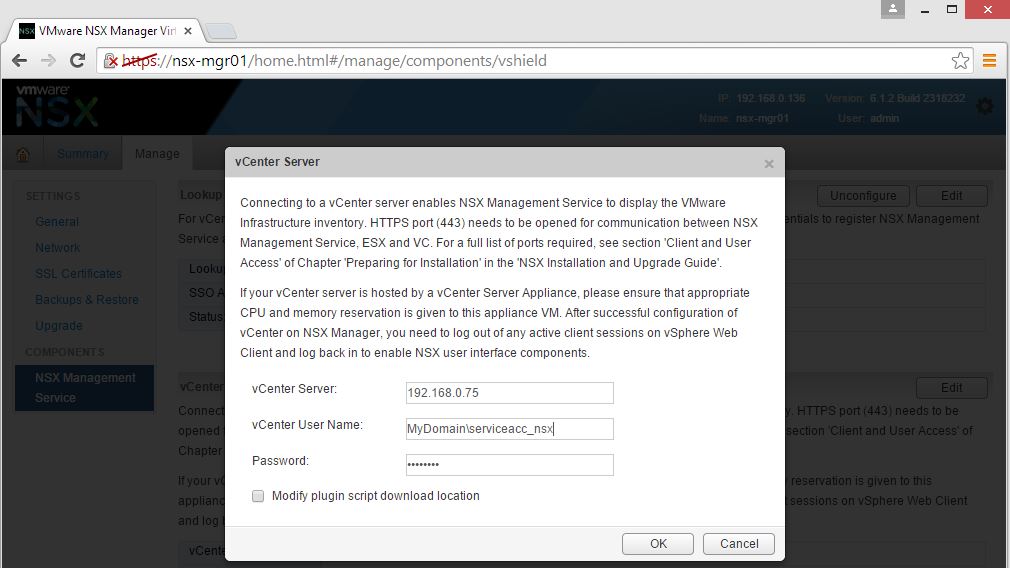
    9. Now configure the vCenter service registration. Note that this vCenter server needs to be the vCenter server managing the computer & edge cluster, NOT the management cluster. You’d also need a vCenter administrative account to connect to the vCenter with and I would normally create a dedicated NSX service account on the Active Directory (or what ever your directory server system is) with administrative privileges within that vCenter. (keep a note of that service accounts credentials as you’ll need it in the step 11 below) 20. vCenter integration
    10. Ensure that both lookup service and the vCenter server registrations are successful with a green circle against the status of each. 21. Verification
    11. Now login to the vSphere web client (of the computer & edge cluster vCenter) using the NSX service account previously used to register NSX manager with the vCenter server. Note that at this point in time, that is the only account that has permission to see & configure the NSX manager instance within vCenter (note that we already allocated vCenter administrative rights to this account so you can login through the web client)22. vSphere web client  login
    12. Once logged in, click on Networking & Security on your left                                                                                                            23. vSphere web client home
    13. Now click on NSX managers on the left and then select the IP address of your NSX manager25. NSX managers
    14. Now click on Manage tab at the top and then Users tab. Verify that you only have 2 users here. The default admin user created during the appliance deployment and the domain account you specified during the integration of NSX manager with. Now  click the plus sign to add a user.  You can a vCenter user or a vCenter group. a vCenter user can be an active directory user. (provided that the active directory is configured within your vCenter SSO). Note that Active Directory groups don’t seem to work here as it needs to be an individual account. If your vCenter admin account would also need NSX administrative rights, please specify it here in the format of Domain\AccountName and click next.27. Add user
    15. Select the appropriate NSX role. You would need the enterprise administrator role assigned to at least one other account (unless you are going to use the service account credentials to configure NSX which is not recommended). So I’m giving a dedicated domain account the NSX enterprise administrator privileges here and I will use that account to login to the vSphere web client to configure NSX afterwards. That account also happened to have vCenter administrative rights too in order to be able to do deploy various NSX components. You can tie down privileges so that NSX Enterprise administrators and vCenter administrators can be separate accounts if you wish but the NSX admin account would need the following permissions within vCenter
      1. User permission to add and power on VMs within the computer cluster vCenter
      2. Permission to add files to the VM datastores within the computer cluster vCenter  28. Enterprise admin
    16. Now, when you log out the NSX service account, and log back in to the vSphere web client with the new account you’ve allocated NSX enterprise administraitive rights, you are able to see NSX manager instance and can configure all other NSX components.

Hope this was useful. In the next article of the series, we will look at how to configure basic NSX components such as VXLAN, logical switches…etc

Next: NSX Controller Architecture & Deployment ->

Cheers

Chan

2. How to gain access to NSX install media

Next: NSX Manager Deployment ->

Ok, this is the 2nd post in the series of NSX. Its about how to gain access to NSX installation media (especially if you are part of average Jo Blogs community)  for you to try it out which seems to be not very clear to many (and wasn’t clearly documented by VMware until recently, in one place)

Now, when I first heard about VMware pushing NSX to customers, especially after the discontinuation of vCloud Networking and security, first thing I wanted to do was to get hold of the evaluation media for NSX along with the official documentation and try it out in my lab, having done the same with all other VMware products since vSphere 3.5 U2 release, initially as an ordinary customer and later, as a VMware partner. However to my surprise, when I logged in to my VMware account, I was not able to download the installation media / appliance as it said I was not entitled to download it. I work for a large VMware partner in the channel and I have almost unrestricted access to all VMware product media downloads together with NFR licenses that I can use for study, lab & demo purposes. So I was specially disappointed to see everyone taking about NSX and blogging about it being deployed in their labs…etc, yet as a large VMware partner, I (or anyone else in my company for that matter) didn’t have access to get the media. (see the screenshot below). I’d spoken to a large number of other VMware channel partners and their techies and some large VMware customers who’s got close relationships with VMware and everyone had the same issue. Just cannot seem to get hold of the download…!!

1. Cannot download

After some digging through the VMware channel team and partner alliance team, I found out that the NSX business unit within VMware are keeping a tight grip on the software to the degree that they would not want you to have access to download NSX unless you fit the following criteria.

  • An NSX customer who’s bought the license / NSX accelerator service through the VMware PSO (professional services) arm

OR

So, the first option means, they would want you to buy / pair for it through a starter kit / accelerator pack, which in all honesty I wouldn’t want to as a customer, especially when I can download every other VMware product for free and evaluate for 60 days to decide whether its worth paying for it. So, Nah….! to that one

Second option means you need to have done the NSX ICM course. Now this too could be seen as an un-necessary expense to the average customer as the course isn’t cheap. I (well… my company to be precise) had to pay around £3,000.00 (in the UK) fro me to attend this course. Again, I wasn’t too thrilled about having to go down this route, especially since I am a SE at a VMware reseller & a solution provider who sell VMware products and they are handicapping my ability to learn the damn product before I could position it for the customers which didn’t make much sense. But as it turned out, I had to do the ICM course anyway as a starting step towards earning the VCP:NV certification (work in progress, amongst other things) and I finally gained access to the software in a legitimate way. When you finish the course, after about 2 weeks, what’s supposed to happen is that you are submitted to be approved to receive access to NSX media (whether you are a customer or a partner). Only if you are successful, you are then supposed to receive an email  from the Nicira team with a link to either create an account on the Nicira website or to reset the password to login to your Nicira portal (provided that the Nicira team has created you an account already after verifying that you’ve completed the course and approved you as a suitable candidate). The email I received looked like below.

2. Nicira Welcome email

As you can see, you are NOT allowed to share this account with anyone else without permission from the POC team within Nicira business unit.

Once you got your password reset, you can login to the https://apps.nicira.com/ url with your credentials and you’ll finally have access to download the media from their (note that you may still NOT have access to download the media from the generic My VMware portal where you download all other VMware software from, unless probably if you’ve actually bought it)

3. Nicira login

Once you login, you’ll have access to NSX download. In my case I have access to both the NSX-V as well as NSX-MH versions but unsure what you’d be allowed access to.

4. NSX-V download


5. NSX-MH

You also get access to a evaluation license key (under entitlements) which appears to be valid a lot longer than the standard 60 day evaluation period.

So, as far as I’m aware, these are the ONLY 2 ways available to you as a partner or as a customer, to gain access to the download to play with it your self. And I have spoken to lot of people including specialist engineers within the NSX BU within VMware as well as the director of the VMware networking and security division in emea and they’ve all confirmed this to be the case. So, the bottom line is, if you need access to it, its gonna cost you one way or another…!

Now, if you are happy not to have access to the install bits but simply wants to play with it, there’s a 3rd option available to you, and that’s called hands on labs. VMware hands on labs are free and anyone can sign up with an account to access various hands on labs. I’ve tried HOLS out and they are pretty awesome. And there are a number of  different hands on labs you can take, that involve NSX. Warning….! These labs are quite lengthy and usually are around 4-5 hours long each.

  • HOL-SDC-1403 : VMware NSX Introduction – This is probably best beginners course to take first up. The course contains the followings
    • Component Overview & Terminology
    • Logical Switching
    • Logical Routing
    • Distributed Firewall
    • Edge Services Gateway
  • HOL-SDC-1425: VMware NSX Advanced – next step up from the above, Include DHCP relay, scale out L3, L2VPN, Trend micro integration and Riverbed integration lab work.
  • HOL-SDC-1424 – VMware NSX in the SDDC – This NSX lab covers integration of NSX with components of the vCloud Suite to deliver on the Software Defined Datacenter (primarily the integration with vRA). This lab is awesome and include the following contents
    • Create Network Profiles
    • Create a Multi-Machine Blueprint
    • Configure a Catalog Item and Deploy
    • vCenter Orchestrator and the NSX API through vCloud Automation Center Advanced Designer
    • Using vCenter Operations with the NSX Management Pack
    • Using vCenter Log Insight with NS
  • HOL-SDC-1419 – VMware NSX for Multi-Hypervisor Environments. This lab appears to be completely based on NSX & Linux KVM

The hands on labs catalog is available here and the access to labs themselves is available here.

Aside from those dedicated labs, the following hands on labs (as of the time of writing) are also available that involve NSX in some form or another.

  • HOL-PRT-1464 – Symantec Data Center Security: Server – Secure your SDDC – Symantec Data Center Security: Server leverages NSX Service Composer and Security Groups to orchestrate and provision security policies for your virtual workloads. Provide agent-less malware protection and guest network threat protection with automated workflows.
  • HOL-SDC-1413 – IT Outcomes – App and Infrastructure Delivery Automation -Reduce time to deliver applications and infrastructure with automated provisioning and policy-based governance throughout the service delivery lifecycle using vRealize Automation and Application Services. Integration points with VMware’s NSX for vSphere will be shown, as well as external service integration (such as vCloud Air, IP, and service management), and extensibility through additional automation
  • HOL-SDC-1415 – IT Outcomes – Security Controls Native to Infrastructure – Learn how several VMware technologies work together to implement policy-based network control, configuration and compliance management, and intelligent operations management. You will use NSX for vSphere to isolate, protect, and apply security policies across virtual network workloads. Use vCenter Configuration Manager to continuously identify, assess, and remediate out-of-compliance virtual machines. Finally, you will use vCenter Operations Manager for operational insight into the health, risk, and efficiency of the virtual infrastructure
  • HOL-SDC-1420 – OpenStack with VMware vSphere and NSX – Are you interested in learning more about OpenStack?  OpenStack is a cloud API framework that enables self-service cloud provisioning and automation.  You will take a basic tour of OpenStack and use it with vSphere and NSX to provision compute, storage and networking resources
  • HOL-SDC-1412 – IT Outcomes – Data Center Virtualization and Standardization – This lab will focus on taking the traditional benefits of vSphere and extending it further into your Software-Defined Data Center (SDDC) through Software-Defined Storage using Virtual SAN and network virtualization using NSX for vSphere. This will enable organizations to see how to deliver the same efficiency and agility for the datacentre as it does right now for the VM
  • HOL-PRT-1462 – Palo Alto Networks – Virtualized Data Center Security – Configure the Palo Alto Networks virtualized next-generation firewall VM-1000-HV with VMware NSX to protect VM to VM communications from today’s advanced threats


These hands on labs are a great way to play with NSX and its related products such as vRA, vCO, Palo Alto network firewall integration…etc, but if you would like to do it in your own time, at your own phase, in your own lab (which most of us IT geeks would given the chance), these labs may not be that  an alternative to having access to the software.

Hope this was useful and clarifies any questions you may have had about how to gain access to NSX media to start working / playing with it.

Comments would be helpful & appreciated.

Next: NSX Manager Deployment ->

Cheers

Chan

VMware New product Annoucments

So, some of you may have heard, VMware made a big announcement today (well, yesterday in US time) about a number of new product / upgrade launches. Given below is a summary of what was announced. I will post more detailed articles about each topic over the coming weeks, as and when I managed to plough through the marketing layers and gotten to the real technical details for each offering.

  • VMware OneCloud:-  This seems to be a new spin to what was previously called Hybrid Cloud (combination of on premise vSphere private cloud + the vCloud Air managed networking services + vCloud Air public cloud platform service working as one)

1. OneCloud


  • VMware Integrated OpenStack (VIO):- Free for the VMware enterprise plus customers which provides a VMware integrated OpenStack distribution. This is a good one…!! For those who are new to OpenStack (including myself), OpenStack is an open source, cloud operating system that allows you to control large pools of compute (managed by the “Nova” module and is compatible with KVM, VMware, XEN, Docker…etc), storage (block storage managed by the “Cinder” module)  and networking (project Neutron) recourses in a datacentre. To put it differently, OpenStack is a collection of open source software, bundled together under a single framework, that let you manage number of hypervisors (KVM, XEN, vSphere) to provide a cloud computing platform. With whats announced today, existing OpenStack solutions can connect to vSphere via the installation of VIO software. VMware support is also on for VIO now. OpenStack management packs also available for vCops.

2. VMware integrated openstack3. Openstack commitment

14. OpenStack details


  • vSphere 6.0:-  Finally…!! Over 650 new features added to vSphere platform. Some key ones are vVols, big data for Hadoop support, 64 hosts per cluster (2X), 4X the VM’s per host supported, cross vCenter VMotion, long distance VMotion, Fault Tolerance for multi processors – up to 4 vCPUs (yeah boy..!!) & vCenter enhancements to support bigger environments. I will be aiming to produce a separate, dedicated article  to cover this release. Also announced were vCloud suite 6 & vCenter Operations suite 6.0. I believe there’s also added graphic supports available in vSphere 6.0 for VDI deployments (especially when deployed with the likes of NVDIA GRID cards with vsga support)

7. vSphere enahancements8. vCenter enhancements

11. cross VC vmotion12. Long distance vmotion


  • VMware vSAN 6:- I’m not a big fan of vSAN personally yet. but if you are, you may find this interesting. Again, will produce a more detailed post in time about new features. Rack awareness support through a concept of fault domains seems interesting (provided that you power you racks from different, redundant power feeds. Otherwise this is practically of not much use). Virtual SAN Snapshot Manager fling is available through the fling site (though I haven’t been able to find this yet within the flings site)

4. vSAN9. vSAN enhancements


  • vSphere Virtual Volumes:-  Storage policy based management. Probably the single biggest addition to vSphere platform in my view. NetApp was a reference case partner for vVols since way back and provide vVol support with Clustered Data OnTAP (cDOT) for VMware from day 1 and of course there are many other storage vendors announcing support too.

6. vVol architecture5. vVol ecosystem support


  • vCloud Air Enhanced Disaster Recovery:- vCloud Air for DR was already available as an offering before. 15 Min minimum RPO is still the same as still based on the vSphere replication adaptor. But some new additions include easier fail back (from vCloud Air back to on-prem) now, and easier offline seeding capability (for the initial synch using offline disks),  up to 24 recovery snapshots on vCloud Air (DR), vRO (Orchestrator) integration with a new plugin are all the details I have on new additions at this stage.

13. Vcloud Air DR


  • vCloud Air Advanced Networking Services:- If you run VMware NSX in your on premise environment, you can now extend that network to VMware’s public cloud platform, vCloud Air public cloud. (this used to be somewhat possible with vshield edge products earlier, but todays announcement now allows NSX customers to do this too by the looks of it). Think stretched VXLAN between on premise and cloud. Some the features offered here seems similar to some of the features what Cisco Intercloud offers. In addition, inherent NSX features such as Micro segmentation (distributed firewall), dynamic routing & up to 200 virtual interfaces (NSX edge interfaces behind the scene) per vDC within vCloud Air are now available (I believe NSX is rolled out in the EMEA version of vCloud Air platform based in UK datacenters so these features are now fully supported)

10. vCloud Air + NSX


Great set of announcements…. vSphere 6 and vVOLs are the biggest ones I like most….. Time to start dipping in to the technical nitty gritties of everything now. 🙂

More details can be found on onecloud.VMware.com

Slide credit goes to VMware..!!

Cheers

Chan

1. Brief Introduction to NSX

Next: How to gain access to NSX media ->

NSX is the next evolution of what used to be known as vCloud Networking and Security suite within the VMware’s vCloud suite – A.K.A vCNS (now discontinued) which in tern, was an evolution of the Nicira business VMware acquired a while back. NSX is how VMware provides the SDN (Software Defined networking) capability to the Software Defined Data Center (SDDC). However some may argue that NSX primarily provide a NFV (Network Function Virtualisation) function which is slightly different to that of SDN.

The current version of NSX available comes in 2 forms

  1. NSX-V : NSX for vSphere – This is the most popular version of NSX and is what appears to be the future of NSX. NSX-V is inteneded to be used by all existing and future vSphere users alongside their vSphere (vCenter and ESXi) environment. All the contents of the rest of this post and all my future posts within this blog are referring to this version of NSX and NOT the multi hypervisor version.
  2. NSX-MH : NSX for multi hypervisors is a special version of NSX that is compatible with other hypervisors outside of just vSphere. Though it suggests multi- hypervisors in the name, actual support (as of the time of writing) is limited and is primarily aimed at offering networking and security to OpenStack (Linux KVM) rather than all other hypervisors (currently supported hypervisors are XEN, KVM & ESXi). Also, the rumour is that VMware are phasing NSX-MH out anyway which means all if not most future development and integration efforts would likely be focused around NSX-V. However if you are interested in NSX-MH, refer to the NSX-MH design guide (based on the version 4.2 at the time of  writing) which seems pretty good.

Given below is a high level overview of the architectural differences between the 2 offerings.

1. Differnces between V & MH

NSX-V

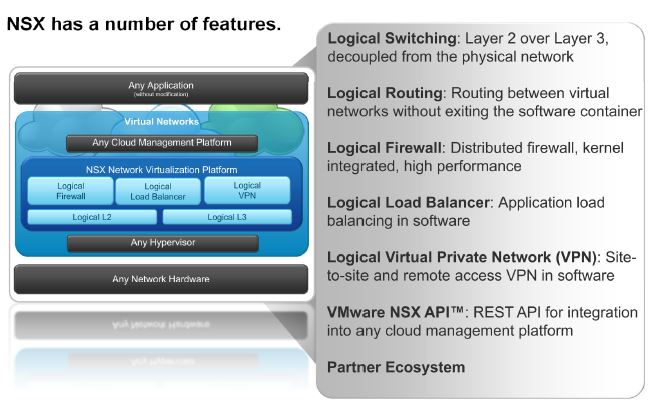
NSX-V, or as commonly referred to as NSX, provide a number of features to a typical vSphere based datacentre

2. NSX features

NSX doesn’t do any physical packet forwarding and as such, doesn’t add anything to the physical switching environment. It only exist in the ESXi environment and independent (theoretically speaking) of the underlying network hardware. (Note that NSX however is reliant on a properly designed network in a spine and leaf architecture and require support for MTU > 1600 within the underlying physical network).

  • NSX virtualises Logical Switching:- This is a key feature that enables the creation of a VXLAN overlay network with layer 2 adjacency over an existing, legacy layer 3 IP network. As shown in the diagram below, a layer 2 connectivity between 2 VM’s on the same host never leaves the hypervisor and the end to end communication all takes place in the silicon.  Communication between VM’s in different hosts still has to traverse the underlying network fabric however, compared to before (without NSX), the packet switching is now done within the NSX switch (known as the Logical switch). This logical switch is a dvPort group type of construct added to an existing VMware distributed vSwitch during the installation of NSX

3. Logical Switching

  • NSX virtualises logical routing:- NSX provides the capability to deploy a logical router which can route traffic between different layer 3 subnets without having to physical be routed using a physical router. The diagram below shows how NSX virtualise the layer 3 connectivity in different IP subnets and logical switches without leaving the hypervisor to use a physical router. Thanks to this, routing between 2 VMs in 2 different layer 3 subnets in the same host would no longer require the traffic to be routed by an external, physical router but instead, routed within the same host using the NSX software router allowing the entire transaction to all occur in the silicon. In the past, a VM1 on a port group tagged with vlan 101 on host A, talking to VM2 on a port group tagged with vlan 102 on the same host would have required the packet to be routed using an external router (or a switch with Layer 3 license) that both uplinks / vlans connects to. With NSX, this is no longer required and all routing, weather VM to VM communication in the same host or between different hosts will all be routed using the software router.

4. Logical Routing


  • NSX REST API:-  The built in REST API provide the programmatically access to NSX by external orchestration systems such as VMware vRealize Automation (vCAC). This programmatically access provide the ability to automate the deployment of networking configurations, that can now be tied to application configurations, all being deployed automatically on to the datacentre.

5. Programmatical access

  • NSX Logical Firewall:-  The NSX logical firewall introduces a brand new concept of micro segmentation where, put simply, through the use of a ESXi kernel module driver, un-permitted traffic are blocked at the VM’s vmnic driver level so that the packets are never released in to the virtual network. No other SDN / NFV solution in the market as of now is able to provide this level of micro segmentation (though Cisco ACI is rumoured to bring this capability to ACI platform through the use of the Appliance Virtual Switch).  The NSX logical firewall provide the East-West traffic filtering through the distributed firewall while North-South filtering is provide through the NSX Edge services gateway. The Distributed firewall also allows the capability to integrate with advanced 3rd party layer 4-7 firewalls such as Palo-Alto network firewalls.

6. Firewalls

There are many other benefits of NSX all of which cannot be discussed within the scope of this article. However the above should provide you with a  reasonable insight in to some of the most notable and most discussed benefits of NSX.

Next: How to gain access to NSX media ->

Cheers

Chan

vRA – Deployment Highlights

This article aim to provide key deployment highlights during a typical deployment of VMware vRealize Automation, also known as vRA / vCAC for quick reference. Note that this is NOT an in depth, step by step guide but only a summary of key points to remember, in a hierarchical format based on the order of deployment.

  1. Deploy the SSO appliance that ships with vRA or use the existing vCenter SSO server (as long as the version is =>5.5)
    • I’d prefer to use the existing SSO server from vCenter, especially if its already deployed in a scaled out deployment model (dedicated SSO server / cluster that is separate from vCenter server itself) which is more scalable and provide single SSO infrastructure which I believe is better and neater than having multiple SSO servers everywhere.
    • There are arguments for deploying the vCAC SSO also, especially since its release cycle is the same as vCAC appliance itself where as vCenter SSO is on a different release cycle which can cause feature mismatches…etc
  2. Deploy the vRA/vCAC appliance itself
    1. Once deployed go to the administrative page (https://<fqdn of the vRA appliance>:5480) and configure the settings
    2. If using vCenter SSO, note the below during the vRA configuration (SSO tab within the vCAC settings tab of the vRA configuration page)
      1. SSO Host & Port: SSO server name should have the same case as what’s been registered in the vCenter SSO (if unsure, browse to https://ssoserver:7444/websso/SAML2/Metadata/vsphere.local and save the vsphere.download file when prompted. Open the vsphere.download file in notepad or some text editor. Locate the entityID attribute of the EntityDescriptor element. That is the name and case you need to use here)******** This will save you lot of troubleshooting time*********
      2. SSO Port: 7444 for the vCenter SSO
  3. Deploy the IAAS server component
    1. Pre-requisites:
      1. Ensure that the IAAS server has the W2k8R2 SP1 applied…..!!
      2. Download the latest pre-req automation script “vCAC61-PreReq-Automation.ps1” on to the IAAS server host (Windows). (vRA 6.2 version of the script here)
      3. Run the above powershell script on the IAAS host. When run, this will download all the missing pre-requisite components including DontNet 4.5.1 & JRE 7 on to the IAAS server automatically.
    2. Install IAAS components:
      1. Download the IAAS install components specific to your vCAC deployment from the vCAC appliance deployed in step and install (from https://<vRA Apliance FQDN>:5480/#iaas)
      2. Run the installation of IAAS components
        • Accept the EULA

1

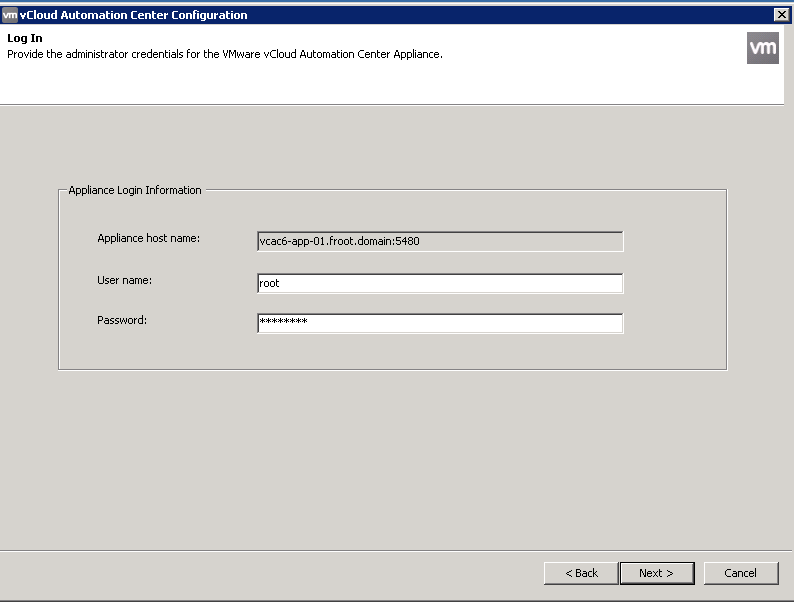
        • Provide the vRA/vCAC username to connect to vRA appliance

2

        • Select complete / custom install – for this example, I’m selecting the complete install assuming that this is the first IAAS server being installed.

3

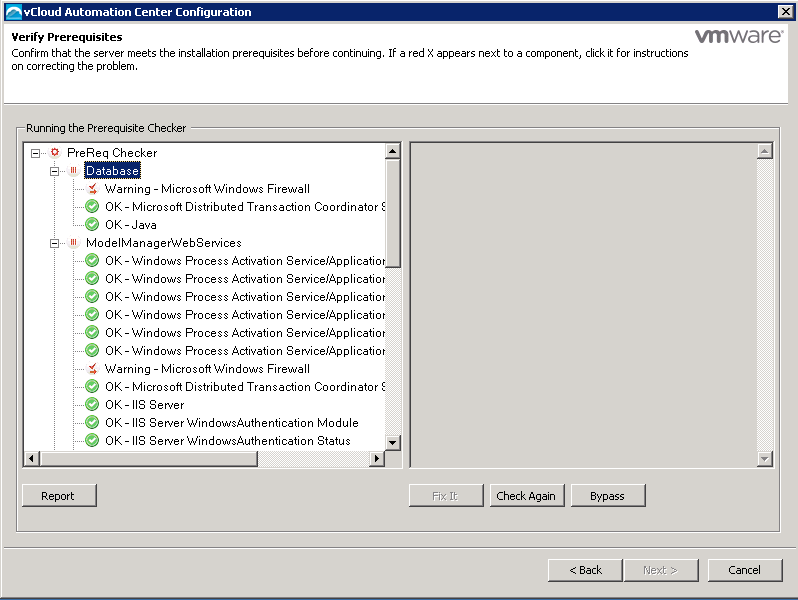
        • Select Database and click bypass in the below screen (Installer will provide the option to enter DB server details afterwards)

4

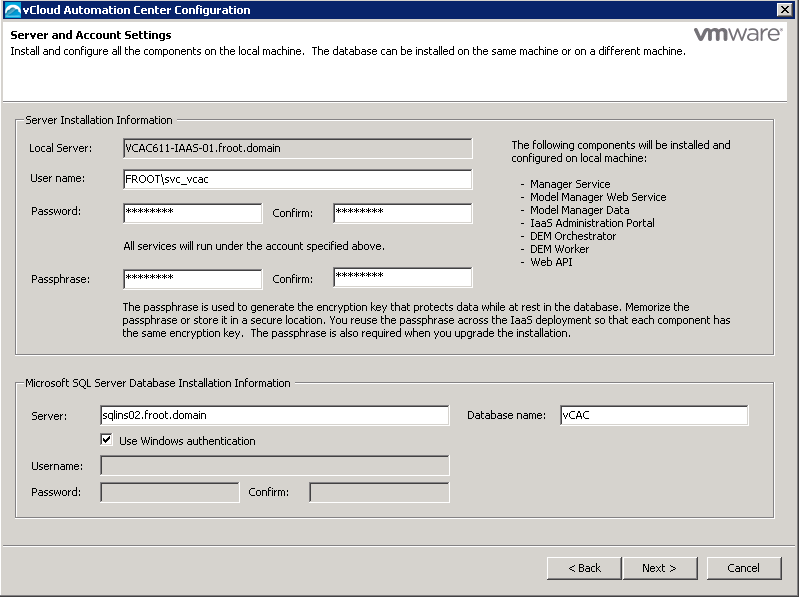
        • Provide the DB server details as follows – This is where you can provide the SQL server details for a separate, resilient / clustered SQL server instance. (recommended). Note the points below
          • Don’t type the SQL server instance name (if you have one). Use just the DB server name.
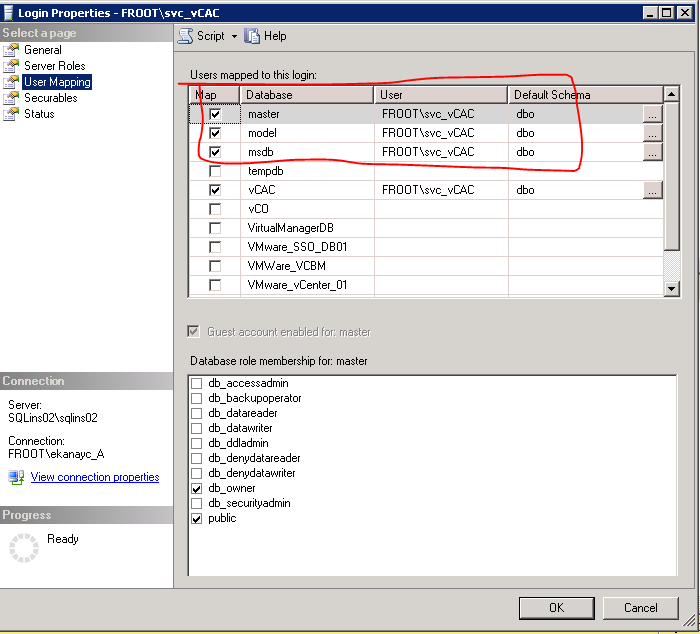
          • If using Windows authentication, the vRA service account (i.e. domain\svc_vcac) needs to be a sysadmin on the SQL box during the installation phase (sysadmin role can later be revoked). There will be no need to pre create an empty SQL database files on the server or even a prepolated DB using the DBCreate script provided with the installer (used to be the case before 6.1). vRA IAAS database will automatically be created during the installation using the specified service account. Note that the domain service account need to be mapped to SQL instance as shown below (MSDB as the default database & with sysadmin rights. These are required only during the installation and can be revoked afterwards)

5

6

Without the red highlight below, the DB setup script will fail. (Just assigning the sysadmin rights alone is NOT enough)

7

If not using windows authentication (i.e. using SQL authentication), the SQL DB can be pre-created by SQL / sys admin using the install scripts (install guide page 63) and an SQL account with DBO permission granted to the database need to be manually created. Installer can create the DB – Need Sysadmin privileges for the SQL account credentials specified in the below screen

Now proceed with the IAAS install

8

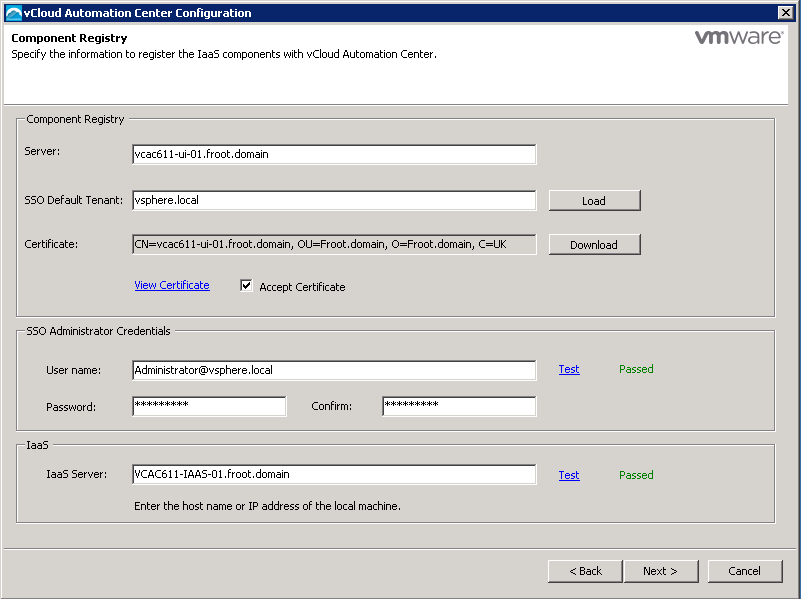
Provide the names for the 1st DEM orchestrator and worker. Note that while multiple DEM orchestrator deployment is recommended for a resilient deployment, only 1 DEM orchestrator can ever be active at one time. Note that when creating the end point (as the Inf-admin later on during the post deployment configuration), the name of the end point provided SHOULD match the endpoint name defined in this screen. (make a note of the endpoint name)

9

Test the credentials and make sure they pass for the installation to proceed.

10

Click install to begin the 1st IAAS server installation

11


vCenter Support Assistant 5.5.1.1

Just came across this nice virtual appliance & plugin to the vCenter web client that is free and sits along your vCenter and collect & send autosupport details to VMware (regular collecting of support bundles from vCenter and auto forward them to VMware for proactive support…. Seems to work Kind of similar to how NetApp Autosupport works in NetApp SANs)

Check it out

http://www.vmware.com/go/download-vcenter-support-assistant

more details to follow re installation and configuration.

vCAC 6.1 secondary DEM Orcehstrator and Worker installation error (Error 3: -2147287038)

Just thought I’d share a peculiar error I’ve been getting while trying to deploy a second DEM Orchestrator / Worker component as a part of a redundant vCAC server deployment…..

I have a single IAAS server that was installed with the Model manager service and the default DEM Orchestrator (Active) and a DEM worker in one server and wanted to deploy a second instance of DEM Orchestrator (passive) and an additional DEM worker as per VMware best practise, on a separate IAAS server VM. (VMware best practise is for more than 1 DEM orchestrator to be deployed along with additional DEM workers). In order to achieve this, I was attempting a custom install of the IAAS setup where only the Distributed Execution Manager components were selected but the installation kept failing with the following error message every time despite all the pre-req’s being in place….. (Even the verification is passed successfully as shown below)

DEM_Error_1

Error message below

DEM_Error_2

I haven’t been able to find any KB articles from VMware with regards to this issue or how to fix it so having had a boring read through the install log, you can see the following lines with error codes (amongst other things – see the bold text)

  • MSI (s) (10:70) [02:01:17:654]: Note: 1: 2262 2: Error 3: -2147287038
  • Error executing: C:\Program Files (x86)\VMware\vCAC\Distributed Execution Manager\DEM2\RepoUtil.exe Model-Config-Import -c “C:\Program Files (x86)\VMware\vCAC\Distributed Execution Manager\DEM2\DEMSecurityConfig.xml” -v
    Error importing security config file DEMSecurityConfig.xml. Exception: System.Data.Services.Client.DataServiceTransportException: The underlying connection was closed: Could not establish trust relationship for the SSL/TLS secure channel. —> System.Net.WebException: The underlying connection was closed: Could not establish trust relationship for the SSL/TLS secure channel. —> System.Security.Authentication.AuthenticationException: The remote certificate is invalid according to the validation procedure.  ——————————–
  • DynamicOps.Tools.Repoutil.Commands.ModelConfigImportCommand.Execute(CommandLineParser parser)Warning: Non-zero return code. Command failed.
    CustomAction RunRepoUtilCommandCA returned actual error code 1602 (note this may not be 100% accurate if translation happened inside sandbox)
    Action ended 02:01:48: InstallFinalize. Return value 2.

Turned out that this happens primarily due to the fact that my primary IAAS server’s default SSL certificate (self signed) not being trusted by the new server where I’m trying install the additional DEM components….

So the solution is  to manually import the certification from the primary IAAS server and add it to the certificate store of the new server first prior to attempting the install of the secondary DEM components.

You can grab the certificate from the primary IAAS server using the URL https://<FQDN of the primary IAAS server>/repository/Data/MetaModel.svc/

Make sure you import the certificate in to the Local Computer’s Certificate store and that you can see it under the Trusted Root Certificate Authorities…

Note to VMware: Perhaps you need to add a SSL certificate validation criteria to the Test option where this is checked properly within the initial screen???

See the screenshots below for guidance.

DEM_Error_3

DEM_Error_4

DEM_Error_5

DEM_Error_6

DEM_Error_7

Once the SSL cert is added to the second server, the additional DEM components gets installed successfully.

Cheers

Chan